This makes me think that not only could it use a bit of spicing up in the visual sense, but also that this would be pretty handy for Illustrator users as well… maybe even incorporating Modifier key shortcuts to boot.
The set includes keyboard shortcut cards for Adobe Photoshop, Adobe InDesign and Adobe Illustrator CS, Macromedia Freehand, Cinema 4D and 3D Studio Max. These are CS1 versions, but from what I can gather the shorcuts should be pretty much the same for the newer versions. Not too sure about the Macromedia apps (which are now Adobe apps) as I have never used any of them.
As anyone who has read this blog can tell, I am a huge keyboard shortcut junkie, and you should be one as well. I cannot even begin to emphasize how much knowing these will enhance not only your pleasure on using graphics software (and software in general), but how much of a marked increase in productivity you’ll see.
I cringe in geek pain when I see a fellow Photoshop or Illustrator user laboriously hauling their mouse over to the Tools palette, or even to the menubar for anything but the most arcane of Menu items.
Copyright is a very interesting concept, especially coming from the creative/creator side of things. Part of me wants to own and control everything I create for infinity, but the other side of me can understand the need to stimulate creativity in society. However, patent holders only have 20 years to capitalize on their work. There seems to be a dichotomy there, but perhaps there are finer points which separate the two.
Here are some super handy keyboard shortcuts for switching between open document windows when working within the Adobe Creative Suite applications (Illustrator, Photoshop & InDesign). These are Macintosh-only keyboard shortcuts since I do not have access to a Windows machine. Sure to increase your productivity.
Illustrator: Command (Apple) + ~ (that’s the “tilde” key, to the left of the numeral one, otherwise known as “the little squiggly line thing”)
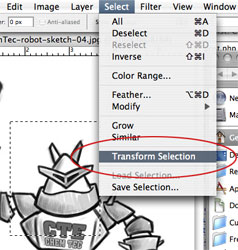
So you’ve just made a selection in Photoshop using the Marquee tool, but you didn’t start in the right place and one of the corners isn’t covering part of the area you want selected.
Yeah, you could try to place your cursor oh-so-perfectly right near the area in question and try to drag another rectangular marquee selection (using the Shift key of course to add to an existing selection). But why doesn’t Photoshop just give you interactive resize handles for the selection?
Ever just want to fill a selection or layer with the background or foreground color in Photoshop? Forget heading all the way over to the palette to choose the Paintbucket tool – just press Command (Apple key)+Delete for the foreground color, or Option+Delete for the background color (Alt+Backspace and Control+Backspace on Windows).
I just picked up a great new plugin for Illustrator, Zoom to Selection (Mac only) from the Adobe Illustrator plugin coder known cryptically as Worker 72a. Zoom to Selection does exactly as it’s name implies – allows one to zoom (maginify) in and out of an Illustrator document using the currently selected object as the centering point of the zoom.
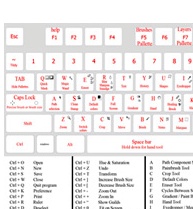 Here’s a pretty handy little reference graphic: an annotated keyboard with Photoshop’s keyboard shortcuts. And even an extended text-based shortcut chart on the bottom!


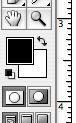
 Ever just want to fill a selection or layer with the background or foreground color in Photoshop? Forget heading all the way over to the palette to choose the Paintbucket tool – just press Command (Apple key)+Delete for the foreground color, or Option+Delete for the background color (Alt+Backspace and Control+Backspace on Windows).